00Philosophy
DJ-CRM is built by working performers, and it shows in the priorities. The unit of the whole system is the booking: one record that starts life as an enquiry and carries everything that follows, through the quote, the contract, the money, the planning, the night, and the paperwork afterwards. Nothing lives in a second system, and nothing has to be copied between tools.
The second principle is that handovers are automatic. A wedding business loses money in the gaps: the quote nobody chased, the contract that sat unsigned, the balance that was awkward to ask for. DJ-CRM treats each stage's exit as the next stage's entrance, so the system does the remembering.
The third is that the client does their own planning. Every confirmed booking gets a private portal where the couple answers the questions in their own time. The performer arrives with a complete brief instead of a week of email tennis.
01The booking lifecycle
Every booking moves through the same states, and these are the real ones the system stores, not a marketing simplification:
Two details matter. Planning is not a separate state: it is what happens inside a confirmed booking, measured as portal progress. And completion means the event physically happened: bookings mark themselves complete automatically the morning after the gig. Money has its own life on the invoices, deliberately separate from the event's state.
How to create a booking by hand
- Open Bookings and choose + New Booking (or use the Wizard from the top bar for a guided version).
- Pick the client, or create one inline; choose the event type, date, times and venue.
- Set the fee and booking fee. Every figure is the total the client pays.
- Save. The portal link, the planning questionnaire and the invoices are created with it, so the client's side works immediately.
02Dashboard and Needs You
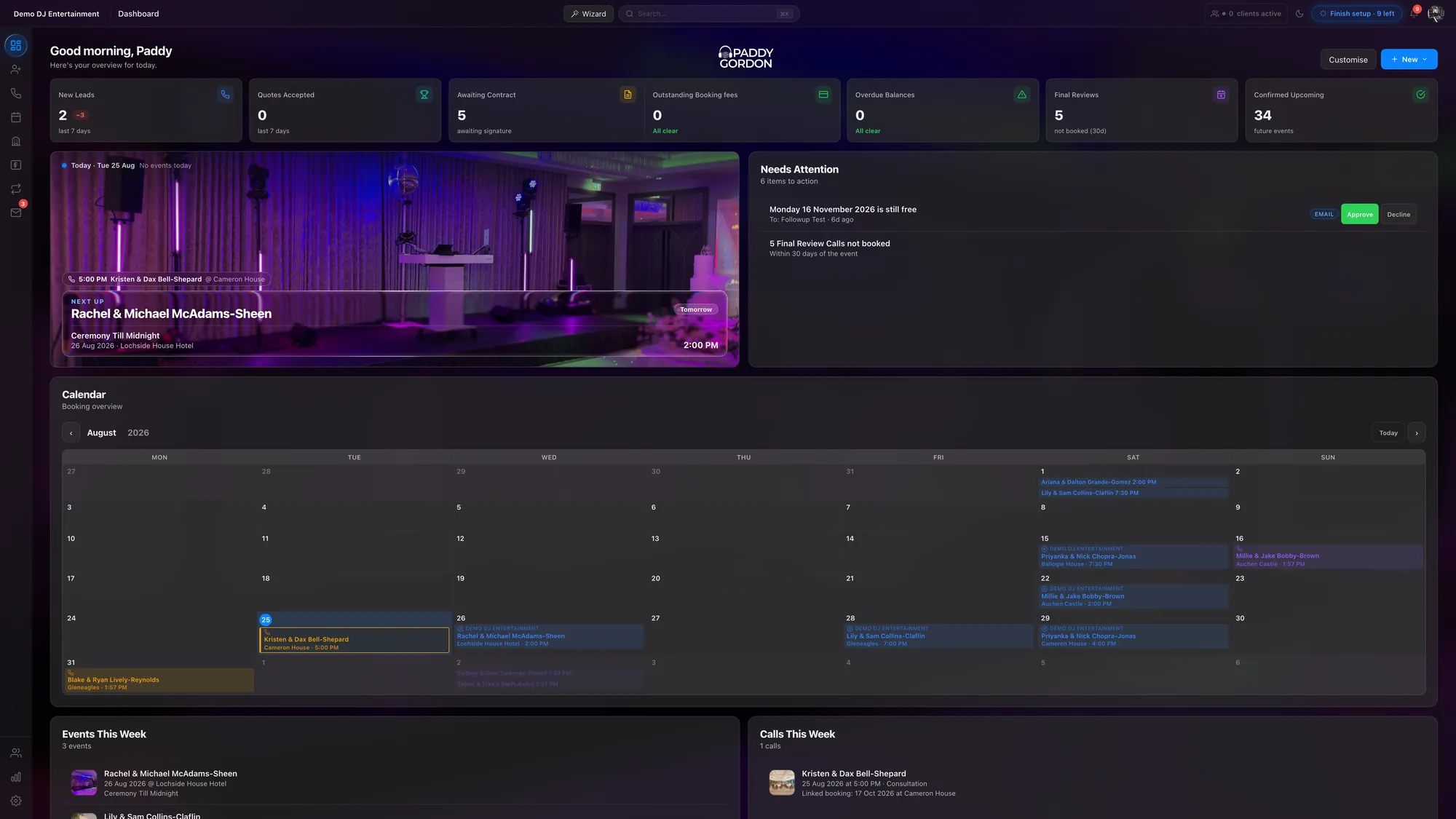
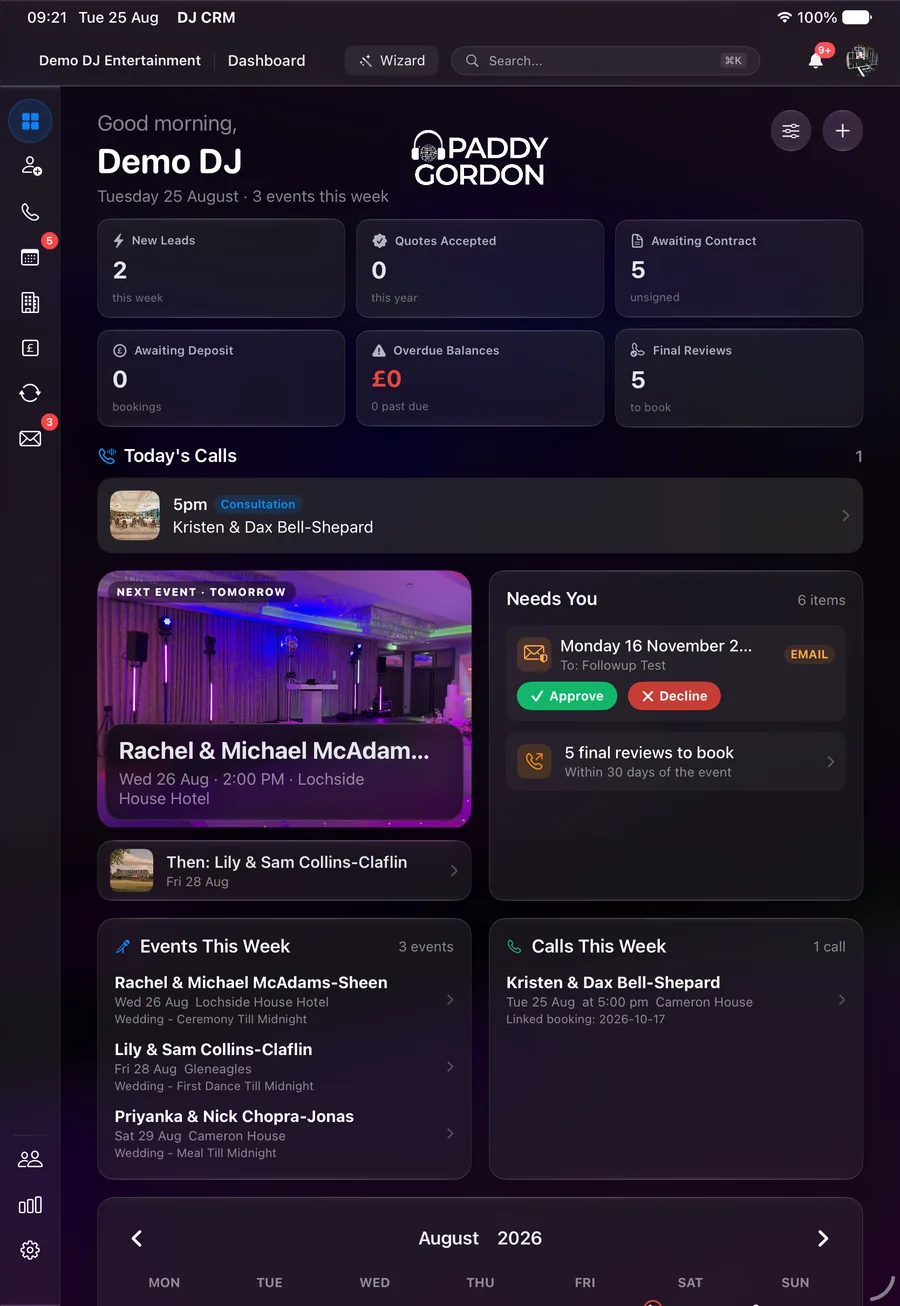
The dashboard opens on today: this morning's calls, the next event, and the week ahead. Metric tiles across the top count new leads, quotes accepted, contracts awaiting signature, outstanding booking fees, overdue balances, final reviews still to book and confirmed upcoming events, and every tile drills down to the exact rows it counts, so a number is never a dead end.
Needs You is the part of the dashboard that nags on purpose. Follow-up approvals, final review calls not yet booked inside thirty days, change requests waiting on a decision: items sit there until they are dealt with, then clear themselves.
The Hub view swaps today for the month: the booking calendar, per-performer
filters, recent client mail, the VAT position and the revenue chart in one screen.
Search (⌘K) finds any client, booking, lead or venue from
anywhere in the console.
How to work a morning
- Open the dashboard; scan Today's Calls and the next event.
- Clear Needs You: approve or decline anything waiting on you.
- Click any metric tile that looks wrong; it opens the exact list behind the number.
- Switch to Hub for the month view when you need the wider picture.
03Enquiries and leads
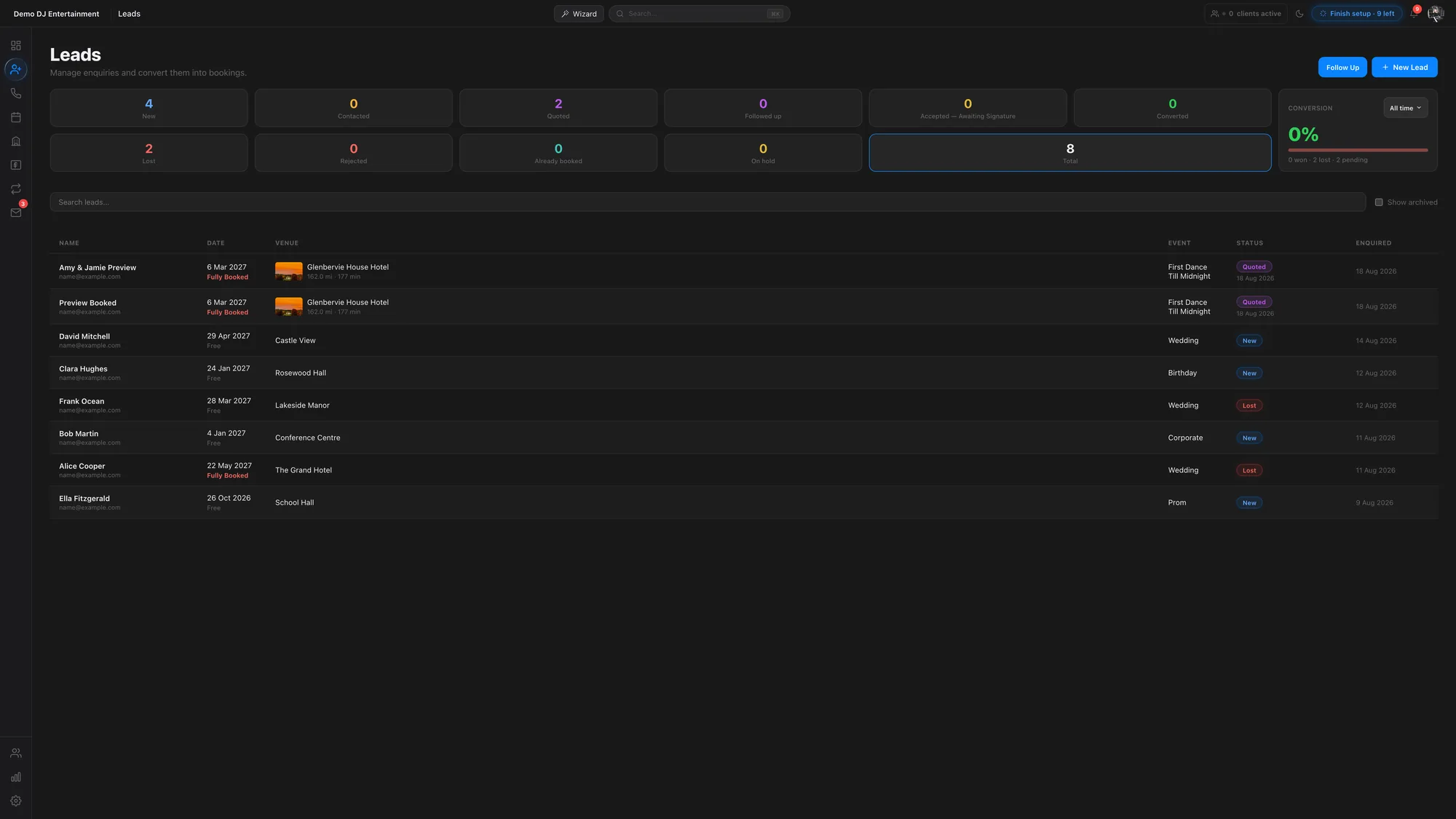
Enquiry forms feed straight into the CRM. A lead carries the couple, the date, the venue, the event type and the services asked for, and the pipeline tracks it through quoted, followed up, accepted and converted, with conversion measured from first contact. Statuses for the unhappy paths are first-class too: lost, rejected, already booked and on hold, so the pipeline reflects reality rather than optimism.
- Availability is checked per performer, not per brand. If the same person performs under more than one banner, a date taken in one place is taken everywhere.
- Fully-booked dates warn loudly, with a link to the booking that owns the date.
- "We've booked someone else" is one click for the client, and it tidies everything: the lead closes and any unconfirmed booking attached to it cancels at the same time.
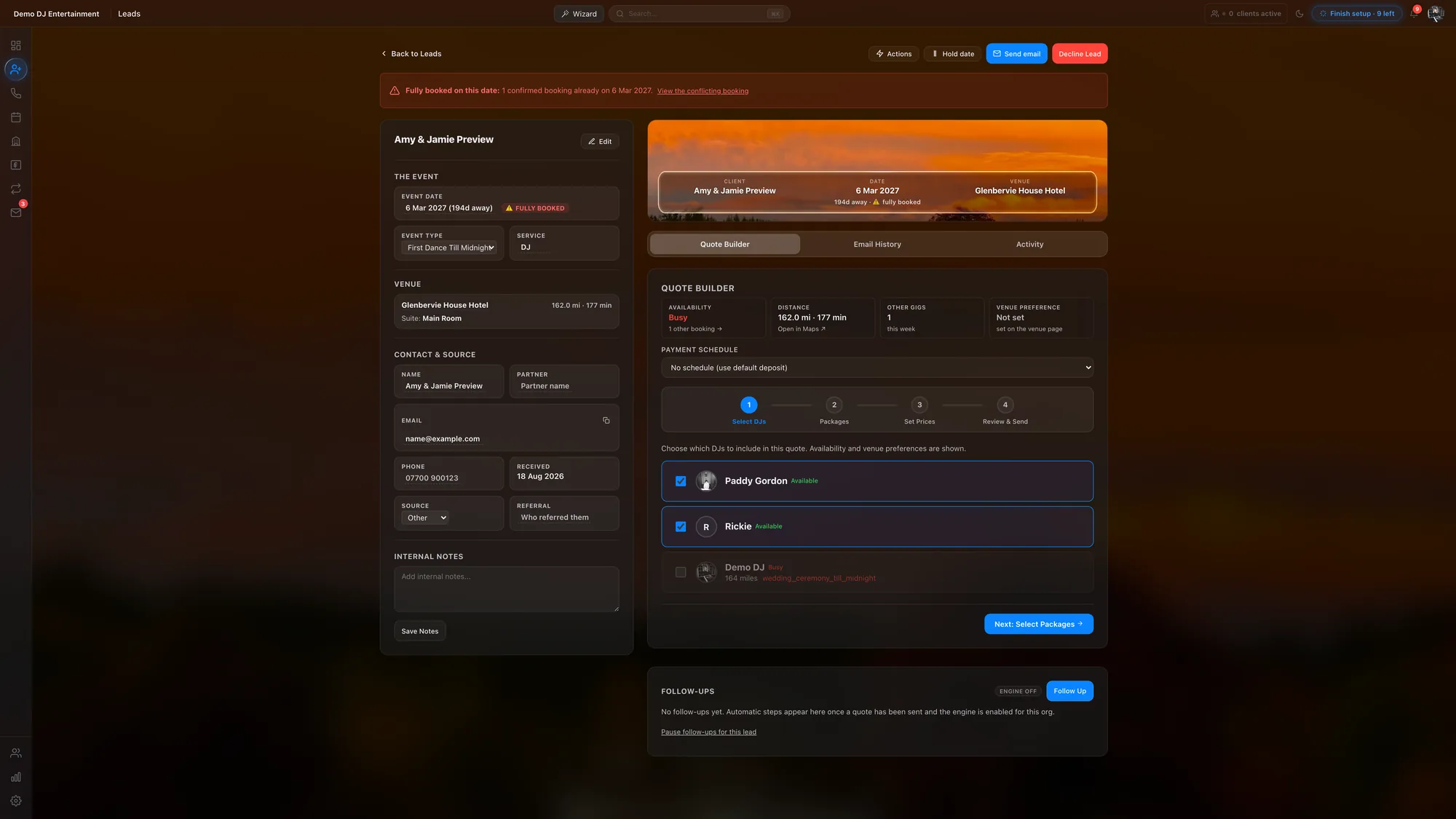
- Lead detail shows the decision-support: availability, distance and drive time, other gigs that week, the referral source, and the full email history with that couple.
How to handle a new enquiry
- Open Leads; new enquiries sit at the top with a New pill.
- Open the lead. Check the availability and distance cards; both are already computed.
- Choose Build Quote to price it, or Decline with a reason if the date cannot work.
- If the couple should talk first, book a consultation from the lead instead; the quote can follow the call.
04The auto-quoter
For wedding enquiries at recognised venues, DJ-CRM can price and answer the enquiry on its own. The auto-quoter checks three things before it speaks:
- Availability: the date itself, plus workload rules such as maximum events per week and limits on consecutive days.
- Travel: the distance and drive time to the venue, priced by the travel policy.
- Pricing: the business's package pricing for that event type.
If all three pass, the client receives an instant quote they can accept online. If any fail, the enquiry queues for a human with the reason recorded, so the admin sees at a glance why the machine stood back.
How to set up the auto-quoter
- Open Settings → Auto-Quoter and switch it on for the event types you want automated.
- Set your workload rules: events per week, consecutive-day limits.
- Check Settings → Event Types holds a default package price for each wedding type.
- Leave the rest to it: quotes it cannot handle appear in Leads with the reason attached.
Every price in DJ-CRM is the total the client pays. For VAT-registered businesses the VAT breakdown is shown extracted from that total, never added on top of it.
05The travel policy
Travel is priced from data, not guesswork. Venues carry their real distance and drive time from base, and the travel policy turns that into a cost applied consistently to every quote, so two couples at the same venue are never quoted different travel.
For far-flung dates the diary understands that travel takes days as well as miles: a booking can block travel days either side of the event, so the days spent getting there and back are not sold twice. Destination weddings extend the same idea with their own package shape, longer balance timelines and a travel section in the client portal.
How to set your travel policy
- Set your base location in Settings → Financial.
- Define the policy bands: what is included, and the rate beyond it.
- For a long-haul booking, set travel days before and after on the booking itself; the diary blocks them.
06Quotes and acceptance
A quote is a page the couple can act on, not a PDF to print. They see the packages, the add-ons and the total, and they accept online. Add-ons come from a catalogue the business controls, the builder recommends set lengths from what the event actually needs, and the email that carries the quote can be previewed and edited in place before it sends: what you see is exactly what the couple receives.
- Clients can change their mind safely. A couple who picked the wrong package can be sent back to the selector without their link changing, and they can undo their own choice right up until they sign.
- Accepting is a real event. The moment a quote is accepted the team is notified and the contract stage starts.
- Multi-service enquiries quote together. One enquiry that needs two acts becomes linked quotes presented as one decision for the client.
How to send a quote
- From the lead, choose Build Quote; pick the package, hours and add-ons. Travel is already seeded from the venue.
- Preview the quote email, edit any wording in place, and send.
- The lead turns Quoted; opening and acceptance are tracked from there.
07Follow-ups
Quotes left unanswered are chased on a schedule rather than a memory. The follow-up engine drafts each chase from your templates, and every send is composed in a full rich-text editor with the quote link carried as a proper button. A lead that has been followed up wears that status, so nobody double-chases, and the whole programme can run with approval first: drafts wait on the dashboard for a yes before anything leaves.
How to run follow-ups
- Open Leads → Follow-ups and set the cadence: when the first nudge goes and how many follow.
- Choose approval mode if you want each send to wait for you in Needs You.
- To chase one lead by hand, open it and choose Follow Up; edit the draft and send.
08Contracts
Contracts are generated from the booking, so the names, date, venue, times and amounts are the booking's own and cannot drift. The couple signs in the browser, both partners where needed, and the signed copy is stored against the booking alongside everything else. Clause content comes from templates the business owns, so the legal text is consistent while the particulars are always the booking's own.
How to issue a contract
- Open the booking and choose Send Contract; the draft is assembled from your clause templates.
- Review it, adjust anything specific to this booking, and send.
- The booking sits Awaiting contract until it is signed; the signed PDF lands in the booking's documents and the portal.
09Invoicing and money
Money follows the booking on its own. When a booking needs invoices, DJ-CRM raises a deposit invoice and a balance invoice with the business's numbering and branding, and the portal shows the couple a plain running total: what the night costs, what has been paid, what remains.
- Online payment sits on the invoice: card, and instant bank payment through GoCardless where connected. Paying the booking fee moves the booking forward automatically, and the payer receives a receipt.
- Xero synchronisation is available end to end: invoices push to the business's own Xero with the right branding theme, payments reconcile back, and the receipt a client downloads is the live document, not a stale copy.
- Bank feed matching can pair incoming transactions with their invoices, so a bank transfer still marks the right booking paid.
- Overdue balances surface before the event, on the dashboard where they cannot hide.
How to get paid
- Connect your rails once in Settings → Integrations: Xero for the ledger, GoCardless for instant bank payment.
- Create bookings as normal; deposit and balance invoices are raised with them.
- The couple pays from the portal's Pay Now; cash or transfer payments can be recorded by hand on the invoice.
- Watch Overdue Balances on the dashboard; it stays at zero when life is good.
Deposits and balances are deliberately separate documents with separate states. The event being played and the money being settled are different facts, and DJ-CRM never conflates them.
10The call system
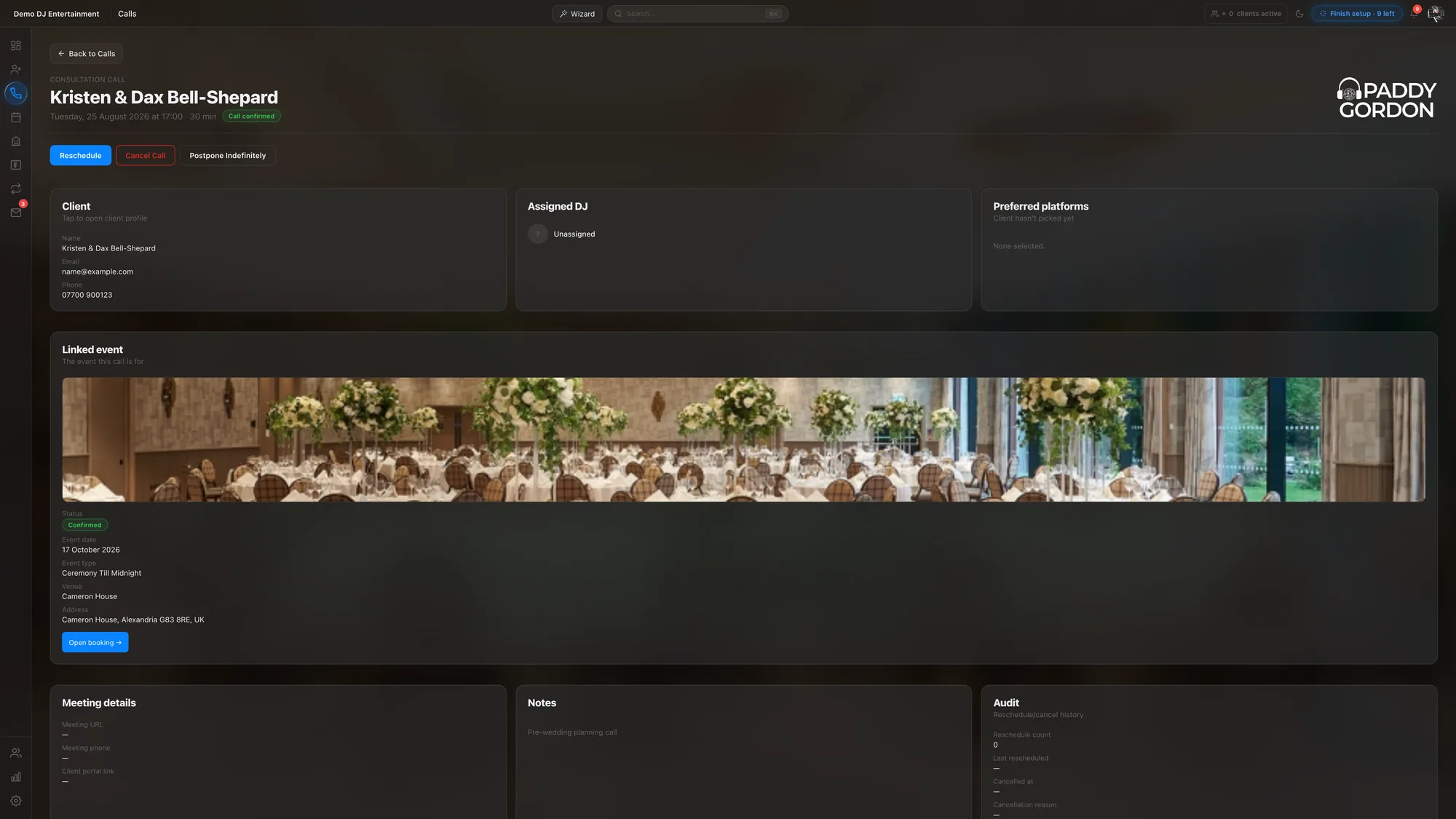
Two conversations matter in every wedding booking: the consultation near the start and the final review near the end. DJ-CRM treats both as first-class records with their own diary, statuses, reminders and outcomes.
- Clients book their own slot against your real availability, from the portal, with confirmation and reminders handled for them.
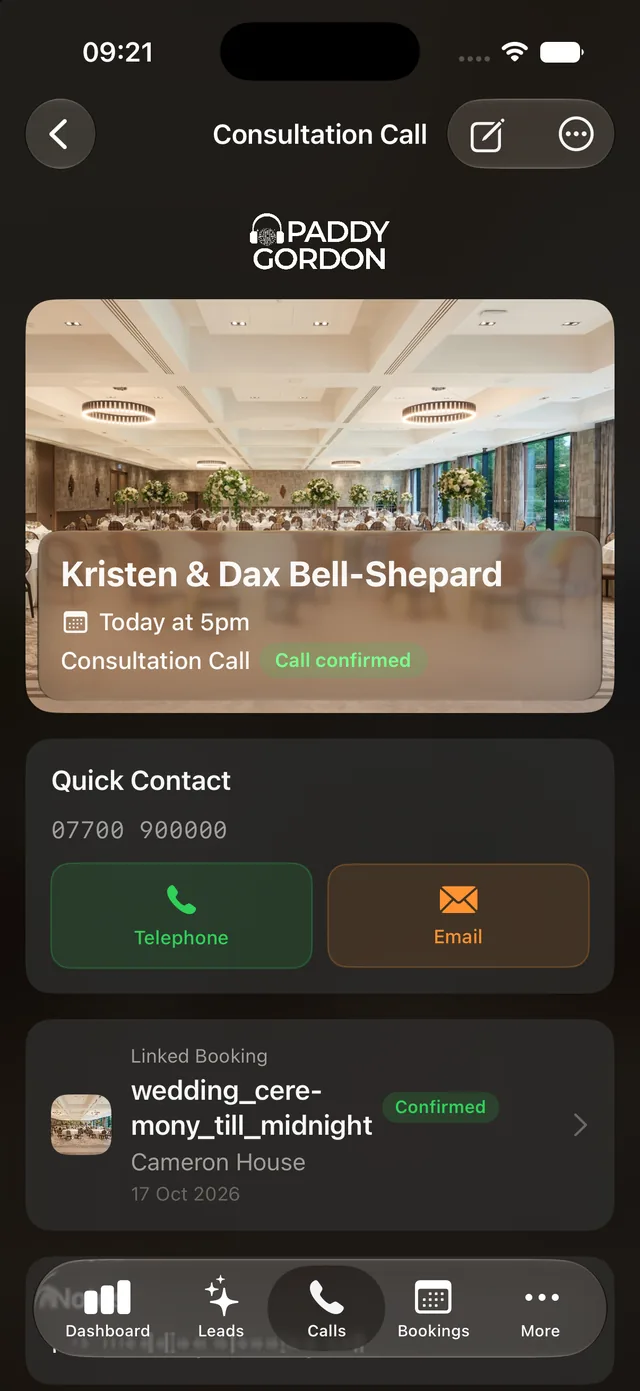
- Calls link to their booking, so the person on the phone has the timeline, the songs and the money in front of them, plus quick contact buttons.
- Final reviews chase themselves. An event inside thirty days without a booked final review appears in Needs You until it is dealt with.
- Reschedules, postponements and no-shows are all recorded properly. A couple who is not ready can postpone indefinitely and pick the thread up later without losing anything.
How to run calls
- Set your weekly call hours in Settings → Calls & Availability.
- Leave consultation booking to the portal; couples pick from the slots you actually have.
- Before a call, open it from Today's Calls; the linked booking is one tap away.
- Afterwards, mark the outcome and drop your notes on the call record; they stay with the booking's story.
Consultations are optional by design: a couple can skip the call and go straight to planning, and the offer quietly expires rather than nagging forever.
11Availability control
Your diary has rules, and DJ-CRM enforces them everywhere prices and slots are shown:
- Weekly slots define when calls can be booked.
- Date overrides and holidays block dates outright, and a blocked date is blocked for enquiries, the auto-quoter and calls alike.
- Workload rules: maximum events per week and consecutive-day limits, respected by the auto-quoter.
- The availability matrix shows the roster's dates side by side for businesses with more than one performer, so cover decisions are made from one screen.
- Cover requests let a performer flag a date they need covering and let the roster answer, with the booking reassigned cleanly when someone takes it.
How to take a holiday
- Open Settings → Calls & Availability → Holidays.
- Add the date range. Enquiries, quoting and call booking all respect it immediately.
- For one-off oddities, add a date override instead; it works the same way for a single day.
12The client portal
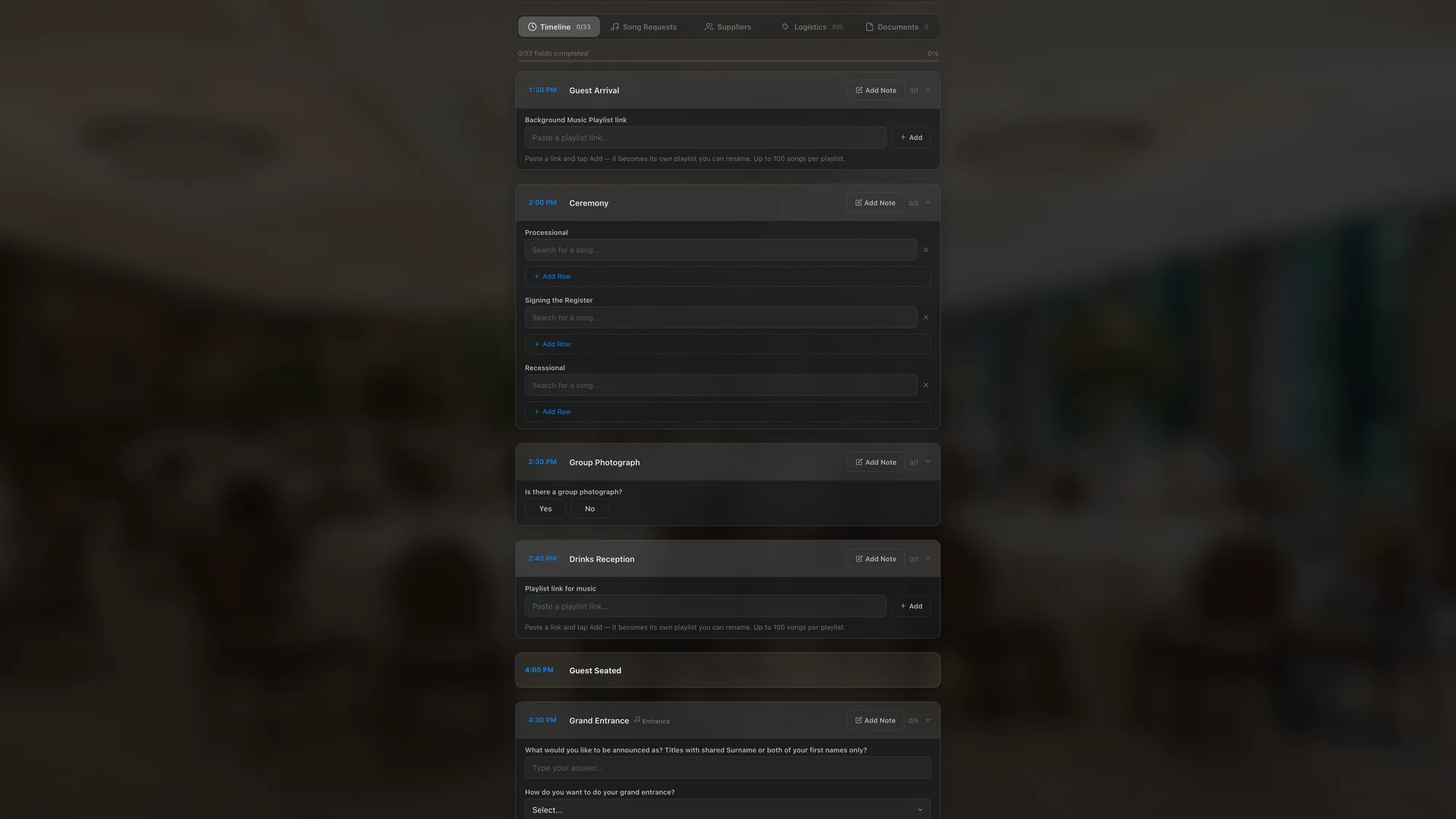
Every confirmed booking has a private link the couple can keep for the life of the booking. It opens on their venue, their date and their progress, and it carries the performer's branding rather than ours: to the couple, this is their DJ's planning site. It works beautifully on a phone, because that is where couples actually plan.
Timeline
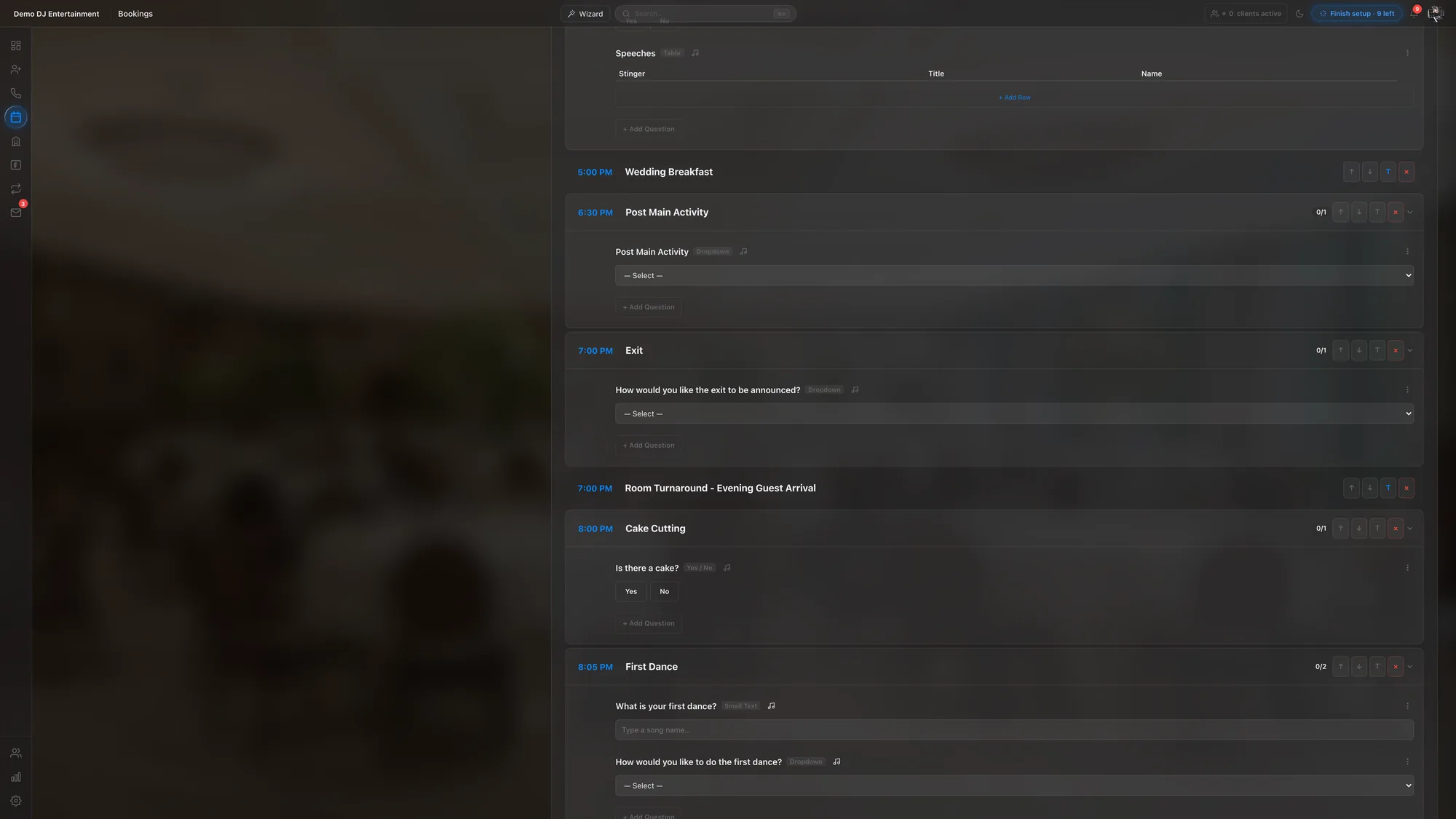
The running order is a questionnaire built from your own templates for that event type: ceremony music, entrances, first dance, the lot. Questions appear only when they are relevant, answers save as the couple types them, and progress is measured so everyone can see how much planning remains.
Song requests
Must-plays, do-not-plays and the moments that matter, captured as the couple thinks of them, with song search built in. A pasted Spotify link becomes a named playlist of its own, and every playlist reaches the DJ before the night.
Suppliers
The couple lists who else is working the day: photographer, videographer, band, piper. Names flow through to the brief; personal contact details are deliberately not exposed through the portal.
Logistics
Access, load-in, power, parking and the practical questions each venue raises, structured as pill answers rather than free-text essays wherever possible.
Documents and payment
The contract and the invoices, stored where the couple can always find them, with Pay Now a click away and the remaining balance always visible.
How a couple uses it
- They follow their private link: no account, no password, on any device.
- They sign the contract, then pay the booking fee; the stage tracker walks them through it.
- They fill in the timeline, songs, suppliers and logistics whenever suits them, across as many visits as they like.
- They book their calls from the same page. Everything they enter lands on the booking instantly.
13Changes after booking
Real bookings change, and DJ-CRM gives change a proper front door instead of a phone call that never gets written down:
- Change requests: the couple asks from the portal ("Need to change event details? Request a change"), the request lands in Needs You, and an approval applies it to the booking. Requests for events already past clear themselves.
- Upgrades and amendments: extra hours, added services and price changes are recorded as amendments on the booking, with the paperwork and totals following.
- Package changes: a couple on the wrong package can be sent back to the selector, or undo their own choice before signing, without their link changing.
- Cancellations keep their history: the booking closes with its record intact rather than being deleted.
How to handle a change request
- The request appears in Needs You with the before and after.
- Approve or decline. Approval updates the booking, the diary and the calendars in one move.
- For money changes, add an amendment on the booking; invoices and totals follow it.
14The night itself
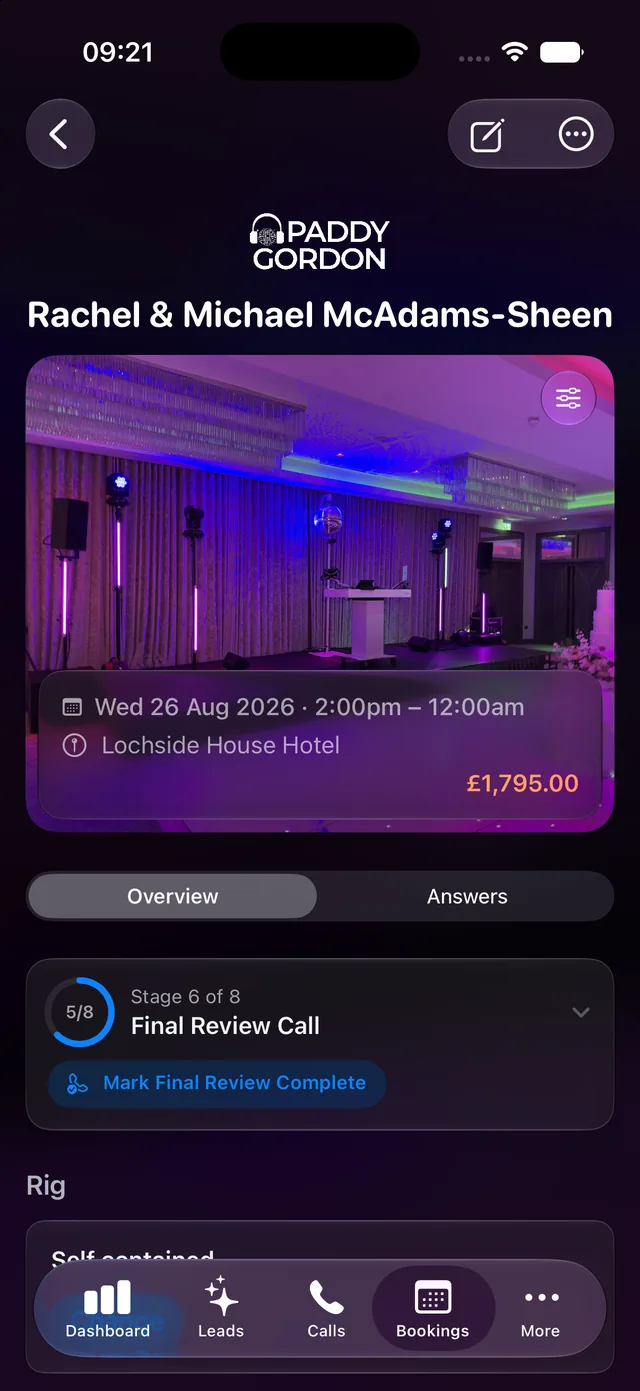
Everything the portal gathers exists so one document can be true: the brief for the night. On the morning of the gig the performer receives a brief pack with the timeline, the songs, the contacts, the venue and the set-up details in one place.
- Equipment riders describe the rig for the night, editable per booking, and where a venue or hire company needs the rider it can be sent to them directly from the booking.
- Gig sheets do the same job for bands, with the line-up for that night on them.
- On the day, the phone is the console: today's timeline, the venue, the contacts and the running order are all in the app, with widgets and Live Activities keeping the next milestone on screen.
- The morning after, the booking completes itself and moves out of the working diary without anyone doing filing.
How to send a rider to the hire company
- Open the booking's Rig card and check the rider for the night.
- Choose to send it; pick the venue or hire company contact.
- The send is recorded on the booking, so everyone can see the rider went and when.
15The supplier directory
Every supplier a couple mentions joins a directory scoped to the business, so the same photographer seen at twenty weddings is one record, not twenty spellings. The directory powers autocomplete in the portal, feeds the brief, and comes with merge tools for the years of duplicates every real business accumulates before it has a system.
How to tidy the directory
- Open Directory and search the supplier's name.
- Select the duplicates and merge them into the best record; every booking that referenced them follows.
16Venues
Venues are records, not strings. Each carries its address, distance and drive time from base, photography, suites and contacts, and every booking at the venue enriches it. Venue photography is what makes the lists and portals feel alive, and venue knowledge is what makes the tenth booking somewhere easier than the first. Duplicate venues can be merged with their history intact.
How venues stay accurate
- New enquiries match to existing venues automatically; unknown ones create a record to finish later.
- Add photos and contacts on the venue; portals and briefs pick them up everywhere.
- Spot a duplicate? Merge it from the venue page; bookings and stats carry across.
17Calendars
Bookings write themselves to the performer's own calendars: Google Calendar or an iCloud calendar over CalDAV, whichever the performer uses. When a booking moves or cancels, the calendar follows. Each brand's calendars are its own; connecting a calendar to one business never leaks another business's events into it. Calendar sharing lets connected businesses see the busy state they need without seeing detail they should not.
How to connect your calendar
- Open Settings → Integrations and connect Google Calendar, or add an iCloud calendar with an app-specific password.
- Choose the calendar bookings should write to.
- That is the whole job: bookings, changes and cancellations sync from then on.
18Mail and messaging
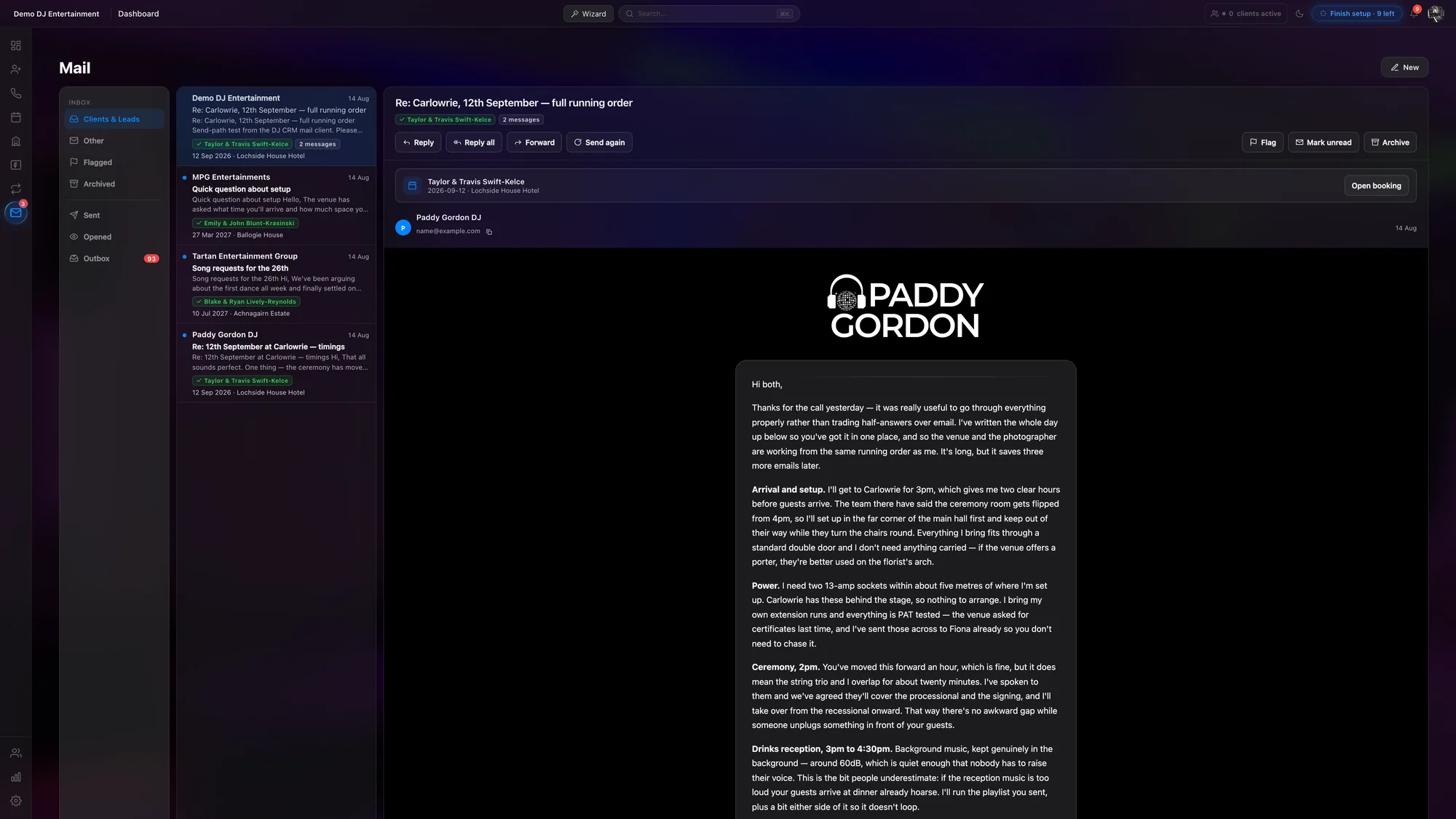
Email happens where the work is. Quotes, confirmations and reminders send from the performer's own address, so couples reply to a name they recognise, and the conversation threads with a client sit alongside their booking rather than lost in a shared inbox.
- A real mail view: threads for clients and leads, read state, and replies composed in the same rich editor as everywhere else.
- Automated messages have moments: confirmations, reminders, balance prompts and on-the-day messages each have a switch and a template, so the business chooses what sends and what stays manual.
- Dark-mode-correct email: messages render properly in both colour schemes, which most booking software still gets wrong.
- SMS reminders are available through Twilio for businesses that want texts as well as email.
How to send from your own address
- Open Settings → Integrations.
- Either connect Google (uses
gmail.sendonly), or enter SMTP details with an app password: iCloud, Gmail and Outlook all work. - Use Test Connection, then save. All client mail now leaves from that address, with your name on it.
19Finances
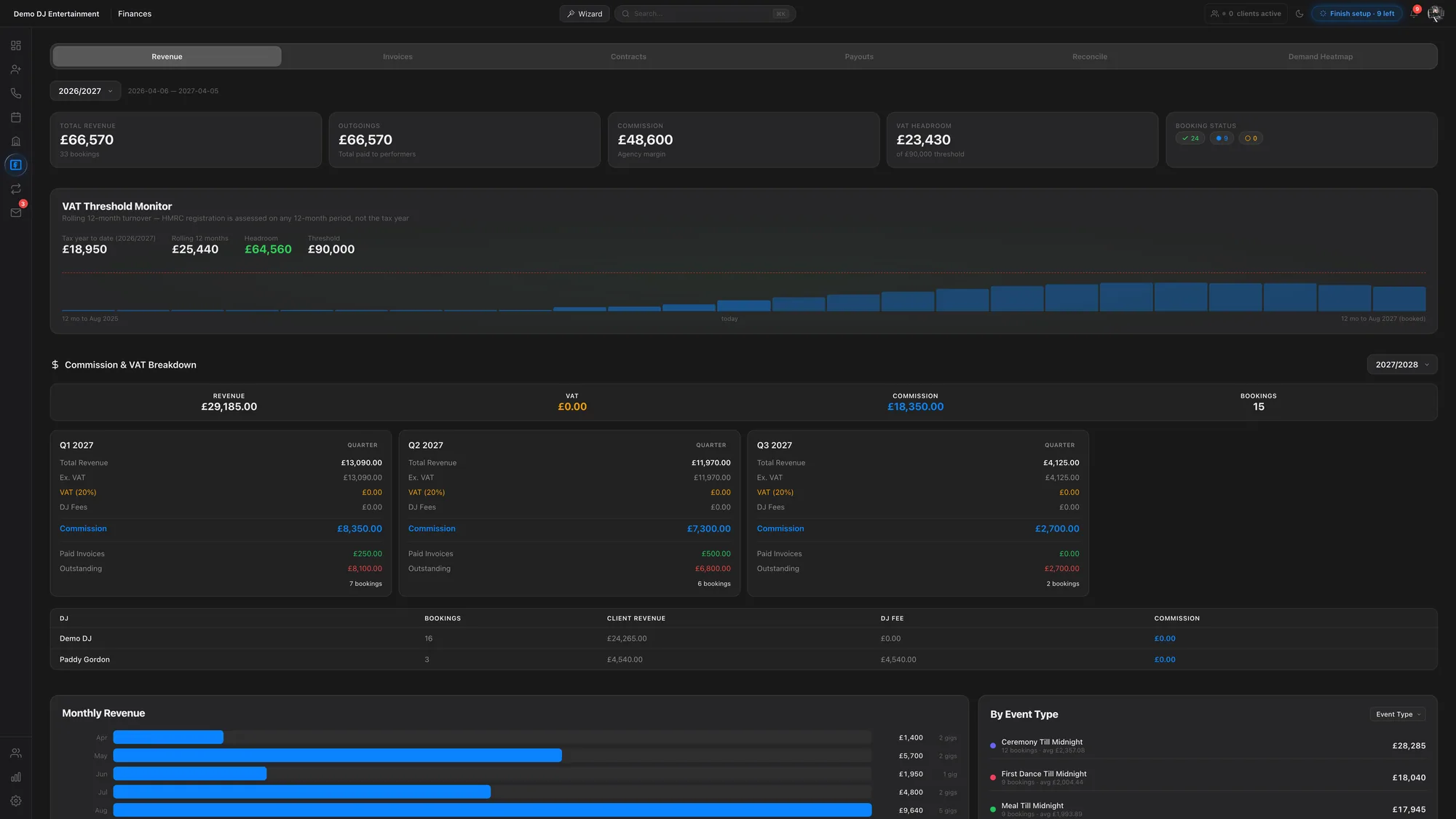
The finances view answers the questions a small business actually asks: what has the year done, what is confirmed and tentative, what is outstanding, and how close is the VAT threshold.
- Revenue by tax year, with the breakdown by event type and a month-by-month picture, plus tabs for invoices, contracts and payouts.
- A VAT threshold monitor that tracks the rolling twelve-month figure the way HMRC actually assesses it, not just the tax year to date, with headroom in plain numbers.
- Commission and payouts for businesses that pay performers, with a payouts ledger showing what the business keeps and what each performer earns.
- Demand heatmap: which dates and seasons fill first, from your own history.
- An accountant role gives your accountant the numbers without the couples' personal details.
How to watch the VAT threshold
- Open Finances; the threshold bar shows the rolling twelve-month figure against the limit.
- The monitor shows the trend, so you see the crossing coming months out, not the week it happens.
- Registered already? Set VAT registration in Settings → Financial and every quote and invoice shows the correct extracted VAT.
20Reviews
Reviews are collected, moderated and published without leaving the system. Sources (including Facebook) gather into one place, approval controls what publishes, and an embeddable widget shows the approved set on the business's own website with a per-site word filter and source labels. Public display shortens client names automatically, so couples are credited without being exposed.
How to publish reviews on your site
- Approve the reviews you want public; approval is one click per review.
- Embed the widget snippet on your website; it inherits your site's look.
- Use the word filter for anything you would rather not display on a given site.
21Enquiry forms
The enquiry form on your website is DJ-CRM's front door. It knows your event types, asks only what the enquiry needs, works properly on phones, and lands the submission as a lead with the venue matched and travel computed. Multi-service businesses can ask which services the couple wants and route the enquiry accordingly.
How to put the form on your site
- Choose which event types the form offers in Settings → Event Types.
- Embed the form on your website.
- Submissions appear in Leads within seconds, auto-quoted where the rules allow.
22Team and roles
A business invites its people and gives each the right shape of access:
- Owners and admins run the business; members see their own work.
- Performer flags mark who can be assigned to bookings, and of what kind; engineers can be marked for jobs that need one.
- The accountant role is read-only on money and blind to client contact details.
- Per-member switches control calls, emails and brief packs, so a performer who manages their own admin elsewhere is not spammed by yours.
How to add a team member
- Open Team and send an invitation to their email address.
- Pick the role, and whether they perform; their sign-in works the moment they accept.
- Assign them to bookings; their diary, calendar sync and brief packs follow their own settings.
23Templates
Everything repeatable is a template the business owns: email templates for each moment, timeline questionnaires per event type, contract clauses, SMS wording, invoice branding. Templates keep every booking consistent while staying entirely yours; DJ-CRM ships sensible starting points and stays out of the words.
How to change what a questionnaire asks
- Open Settings → Templates and pick the event type's timeline.
- Add, reorder or reword sections and questions; conditional questions can show only when an earlier answer needs them.
- Existing bookings can sync the updated template without losing the couple's answers.
24Shapes of business
Live entertainment does not come in one shape, and DJ-CRM models the real ones:
- Solo performers. DJs and magicians running their own diary, billing and planning end to end. Magicians get their own event types, and yes, their portals plan music too where the act needs it.
- Bands. Line-ups are assigned per gig, the members playing appear on the booking and the gig sheet, and a DJ set can ride along as an add-on where the band offers one.
- Agencies. A roster of performers, fees tracked per person per booking, and the agency's own branding on everything the client sees. What the client pays and what the performer earns are separate, visible numbers, settled through the payouts ledger.
- Multi-service businesses. One enquiry can want two acts. The umbrella routes it to each performer's business, the quotes come back as one combined answer, and each booking then lives with the business that will actually perform it.
Underneath all of this sits a hard rule: businesses are isolated. Names, branding, domains, calendars and money never leak from one business into another, whatever the shape. One person can belong to several businesses and switch between them from the top bar, and each business still only ever sees itself.
25Production and AV
For businesses that supply kit as well as performance, DJ-CRM carries the production side: DJ rig definitions that travel with bookings, and a sales-quote flow for AV and event production companies quoting equipment and crew rather than a first dance. The same clients, venues and money engine sit underneath both.
26The apps
DJ-CRM is a web console with real native companions, not a wrapped web view.
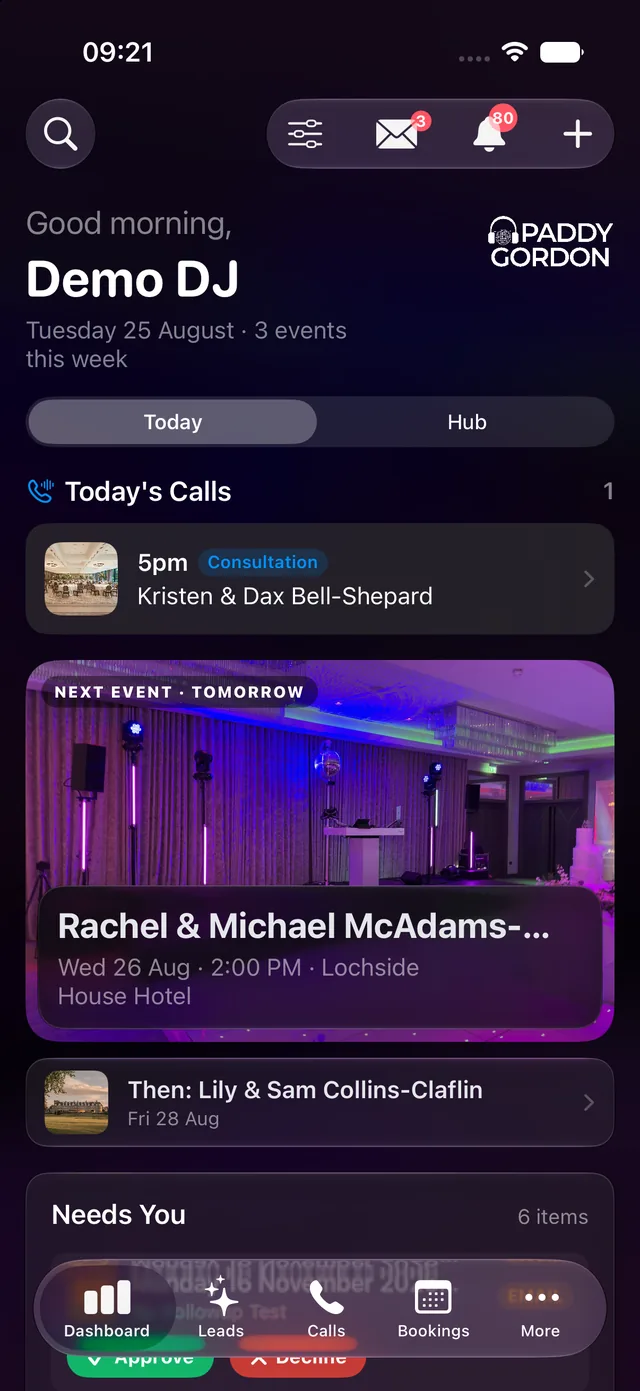
- iPhone: the working week in your pocket: today's calls, the next event, the leads pipeline, full booking detail, the finances hub and client mail, with widgets and Live Activities for the day itself.
- iPad: the same system in a layout that earns the screen, from table-style lists to a side-by-side mail client.
- Android: the working set of the same tools, kept in step with the iOS apps.
- Mac: the console is fully at home in a desktop browser, and the native app runs on Apple silicon Macs too.
How the day-of flow feels
- The brief pack arrives in the morning; the dashboard leads with tonight.
- Directions, timings, contacts and the running order are on the booking in the app.
- The Live Activity keeps the next milestone on the lock screen while you work.
27Imports and exports
History matters. DJ-CRM imports existing bookings and clients from spreadsheets and from common booking tools, so years of past work inform venue knowledge, revenue history and the demand heatmap from day one. Lists export to CSV wherever you see them, because your data is yours.
How to bring your history in
- Open Settings → Imports and upload your spreadsheet export.
- Map the columns once; DJ-CRM matches venues and de-duplicates clients as it goes.
- Review the summary before anything commits. Historic bookings arrive completed, not chatty: no emails fire for the past.
28Access and data
DJ-CRM is not open to public sign-up. Accounts are created for the performers and staff of the businesses that use it, sign-in happens with Google, Apple or passkeys, and single sign-on is login-only: an identity that is not already on a business's allowlist does not become an account by signing in. An account can carry more than one sign-in address, and access ends the moment a business switches it off.
When a performer connects a Google account, DJ-CRM requests only two scopes:
calendar, to keep their own calendar in step with their bookings, and
gmail.send, to send from their own address. DJ-CRM does not sell or transfer
Google user data, does not use it for advertising, and does not use it to train generalised
artificial intelligence or machine learning models. Use of information received from Google
APIs follows the
Google API Services User Data Policy,
including the Limited Use requirements.
Everything shown on this site comes from a demo business: the couples are fictional, the contact details are placeholders, and the venues are real places we are proud to work in.
Full detail lives in the privacy policy. Questions about anything on this page: [email protected].